To help you onboard your existing or new clients who sign up through the BNK Connect platform, we have included an easy to use management tool.
To add a new client, follow these simple steps:
1. Open the ‘Client Management’ Tool
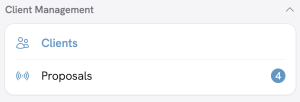
Scan down the feature list to the sub-heading labelled ‘Client Management’, then click on ‘Clients’. This will open the Client Management page, where you will find the ‘Create Client’ button.

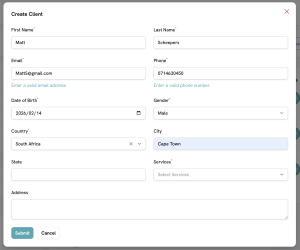
2. Click on Create Client and fill in their information.
To complete this form, you will need their full name, email address, contact number, date of birth and address. You can also list the fitness services they need.
Once the client has been added, you will see a new active customer profile in your client management area. Here you can view the information, message the person or remove them from your profile.
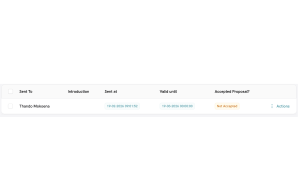
3. View the client profile:
To add the client’s fitness information, select View Client (or click their name), then click the ‘Create Vitals’ button.

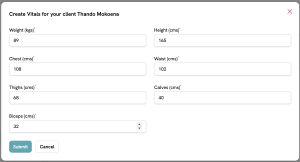
4. Tracking progress is fast and efficient :
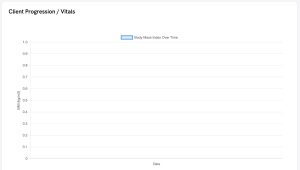
The data will then be recorded and time-stamped to ensure that you can track their progress over time in the ‘vitals’ section of their profile.