Training programs are a core requirement for any fitness business. We have made it as easy as possible to create, customise, and send programs to your clients.
1. Open the ‘Training’ Tool
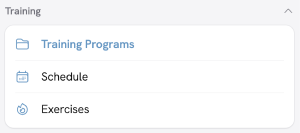
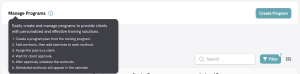
Scan down the feature list to the sub-heading labelled ‘Training’, then click on ‘Training Programs’. This will open the Manage Programs page, where you will find the ‘Create Program’ button.
2. Create Your First Program
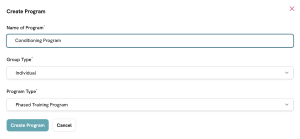
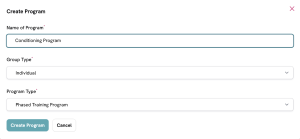
As the name suggests, Programs are objective-based outlines for your clients. Here, you will name and describe the program you have in mind. In our example, it’s called “Pick Up, Put Down,” a cheeky homage to weightlifting.
3. Add Workout Sets to Your Program
In this part of the process, you now add the building blocks, called Workout Sets, that will make up your program.
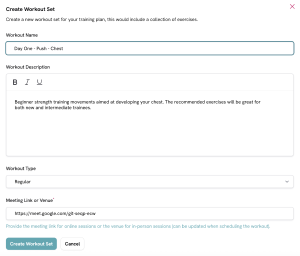
In this example, we will add a chest-focused ‘workout’ to our program called “Day One – Push – Chest”.
4. Add Exercises to Your Workouts
As you can see in the creation process, there are no defined exercises attached to a Workout. These are easily added by clicking on the name of the Workout, which opens the ‘Manage Exercises’ screen.

Click the ‘Add Exercises’ button at the top right of the screen to begin populating your workout.
Note: Click the white button in the centre of the screen to add additional movements to the workout, as it launches with one option.
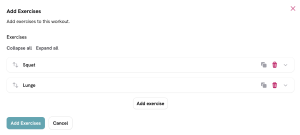
As you can see, we have added more slots, bringing the total exercises in this program to two.
When adding an actual exercise, click on one of the open slots and begin building out your chosen movement.
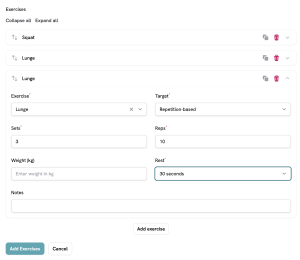
Once all three exercises have been fleshed out, click the blue ‘Add Exercises’ button to save your selected movements and add them to your Workout.
You will now see a screen showing the Program, Workout, and exercises.
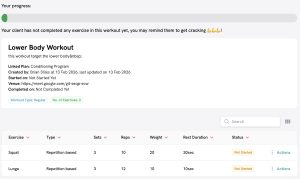
NB! Keep in mind that these Programs can be shared with multiple clients or duplicated and then edited to provide custom plans, making the setup an important part of building a sustainable fitness business.
5. Assign a Program to a Client
Now that you have a fully functional Program in place, the final step is to assign it to a client. To do this, click on Training Programs and open the ‘Actions’ menu next to your chosen Program.
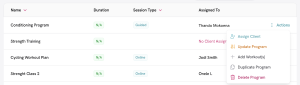
Click on ‘Assign Client’. Now enter a date, select a client from the drop-down, and choose the Session Type.
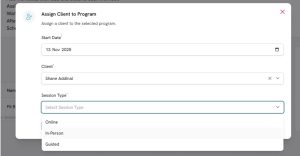
Clicking the ‘Assign Client’ button at the bottom will save your selection and message your client an approval request.