At the core of any successful business is the ability to get invoices out the door and payments into your account. At BNK Connect, we offer a simple, intuitive invoicing system that streamlines its management.
1. Create a Client Invoice in Seconds
Scroll down the left-hand navigation bar and click on ‘Accounts & Billing’. On this page, click the ‘Create New Invoice’ button on the top right of the screen.

Select which client to invoice, their service area, and enter the amount due, the date it is due, and the payment type.
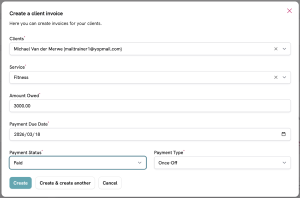
If the contract is recurring, you can set the payment cycle (monthly, quarterly, or annually) at this point.
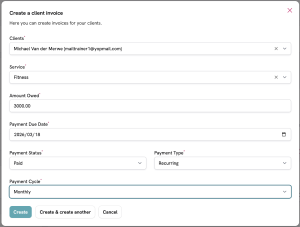
Once you have input all the details, click ‘Create’ and the invoice will be automatically sent to the client on your behalf.
2. Easily Manage Your Invoices
All created invoices will appear in the ‘Latest Invoices’ section. This field displays the client’s name, amount, and services. You can also view the status of the payment, which includes ‘Pending’, ‘Unpaid’, and ‘Paid’.
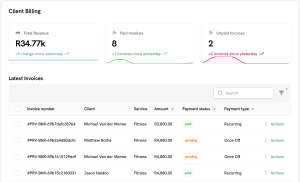
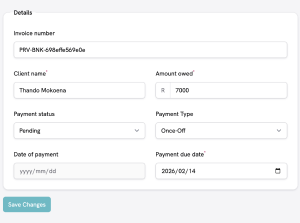
Click the Invoice Number to open the page below to correct any errors or update the information you entered.
3. Send Instant Payment Reminders
To encourage payment, simply click the ‘Send Payment Reminder’ button at the top of the page, and the system will instantly prompt the client to make payment.

Note: Be sure to head over to My Profile & Settings > General Settings and provide your company name, payment link, and payment details, as these are automatically pulled into your invoice.